Apple Watch: 12 Things You Didn't Know You Could Do
Who watches the watchmen? We do, and give you all the hidden secrets.
12. Cover To Mute
11. Taking A Screenshot
10. Setting Your Watch Ahead

9. Compose Default Replies
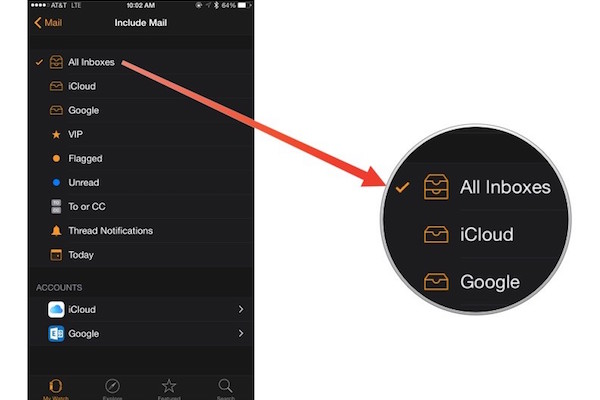
8.Choosing Your Mailboxes
7. Taptic Engine For Directions
While the Taptic Engine sounds like something you might find on the USS Enterprise, in reality it is slightly less exciting. The name is a portmanteau of tap and "haptic feedback", and a fancy way of saying 'vibrations that give information' - similar to old video game joysticks. If you're wearing your Apple Watch while driving, or on a long journey, it can sometimes be preferable to have feedback from your wrist than having to look to your phone all the time - especially if you've forgotten your headphones. As such, the Apple Watch will alert you with a series of taps for left and right turns. For a left turn, you'll get a series of two taps, played three times; while for a right turn, you'll get a steady beat of 12 taps. At the end of your journey, your Apple Watch will give a long vibration to let you know that you're near your destination (and a cheap wrist massage to boot).6. Remote Camera Shutter
https://www.youtube.com/watch?v=yrC-pkXqDOs Occasionally, you need a second pair of hands when taking photos. And it helps when that pair of hands can be on your wrist, as the Apple Watch allows you to control any other third-party photography apps (such as Camera+, Snapchat, Manual, Instagrams Hyperlapse, Fragment, Afterlight, and Waterlogue). However, since this is an exploitation of the software, exercise caution. First, access the Music Glance screen on your Apple Watch by swiping from the bottom of the screen upwards, and then left and right until you find the pane. Then frame your iPhone's shot, and turn the Apple Watch's Digital Crown directly from the Music Glance. This will allow the compatible app on your iPhone to take the photograph, just as if you had pressed the handset's volume button. The Music Glance recognises the change of your Digital Crown as a change to the volume button, and thus takes a photo. Neat, and weird, and maybe very useful.5. Sharing Your Location

4. Hold A Call

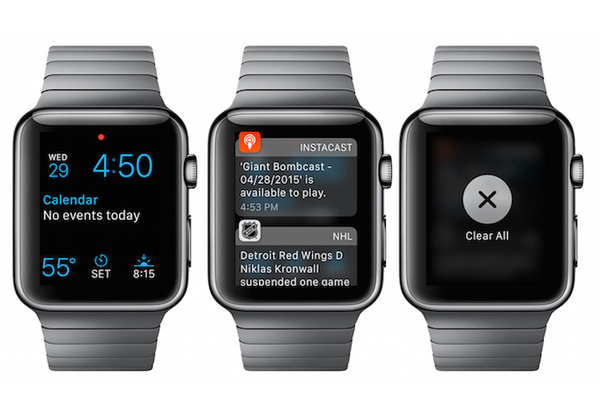
3. Clear All Notifications
2. Managing Apps
By April, there were already approximately 1000 Apple Watch apps available for the users to peruse, use, and eventually get slightly frustrated by when they clutter up what was previously a sleek and shiny watch face. However, there are two ways to manage this, through the Apple Watch itself, or the iPhone's corresponding app: On the Apple Watch companion app, App Layout can be found under My Watch', which will then present you with a representation of your Apple Watch home screen app layout which you can move around - dragging your apps into new positions (but, unfortunately, you're not able to delete them). On the Apple Watch, just press the digital crown to access the Home Screen and then hold your finger down on top of the app cluster until they all start to vibrate, just like on the iPhone. You can then drag and drops apps to organise them, or click the little 'x' in the corner to delete them - apart from the ones that are default on the system, but at least your home screen will look nicer.1. Changing Hands
