PS5 Tips & Tricks: 9 Things You Didn't Know It Could Do
Turn the system on using Spotify??
After years of reveals, teases and gameplay demos, the PlayStation 5 is finally here.
A robust, ludicrously fast-loading piece of kit that retroactively makes the majority of your existing library run smoother - alongside delivering titles like Demon's Souls and Spider-Man: Miles Morales - there's a lot to enjoy.
Thankfully I've had the pleasure of reviewing the unit for the last few weeks (the coverage of which you can find both here and on our Youtube channel), and there's a ton to break down. Sony have created something that takes the best parts of the PS4's user experience, before adding an all-new "Activities" system comprising "Cards" that dynamically generate things to see and do.
The latter for me is the secret sauce, and the gateway for so many players to see 100% of all their titles, mopping up Trophies as they go.
As is always the case after spending a considerable amount of focused time with a piece of tech though, you pick up all sorts of hidden tips, tricks and features that are worth sharing.
9. Replay Any Game Cutscene

Not something the system holds up as a labelled menu option, but a feature you can force-work through the way captures and the Card system interact.
To do this, make sure your system is set to "Easy Screenshots" in the "Captures" part of the Settings menu, then after a cutscene you want to rewatch, double tap the "Create" button to save the previous few moments of any game.
Hit the PS Home button and navigate to the end of the Cards that appear. You'll land on the Media Library tile, where your new capture is waiting to be viewed.
Brilliantly, you can now watch the footage you just caught inside the Card/tile itself, letting you rewatch pieces of gameplay or cutscene without leaving the game itself.
8. Turn The PS5 On Using Spotify Or The PS App
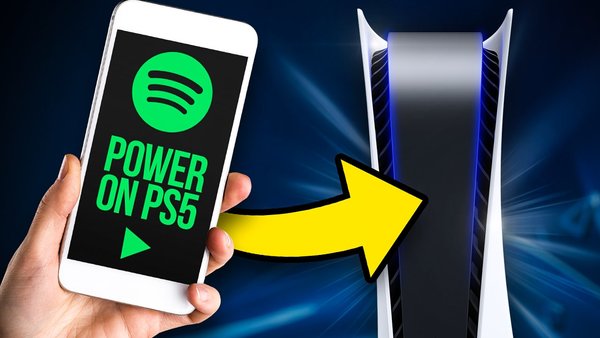
Spotify and PlayStation (or Xbox too) are matches made in heaven. Controlling your game music from your phone works by using the app and beaming audio to the system as an output on the "Now Playing" screen, but on PS5 you can go one further.
First, hop into "Power Save Settings", then "Rest Mode Settings", and you'll be able to tick the box allowing Spotify to wake the system up from standby.
Understandably it doesn't work when totally powered off, but just tap your PS5 as an output source from any Spotify app, and your system will wake up whilst playing your music.
In addition, the new PS App lets you power the system on the same way. You can queue and manage downloads, alongside selecting a game you want to play, meaning the PS5 loads that game immediately, skipping the dashboard to go straight into your title of choice.
As an additional tip, set the system to bypass the login screen and the process is completely seamless.
7. Be Vacuumed Safely
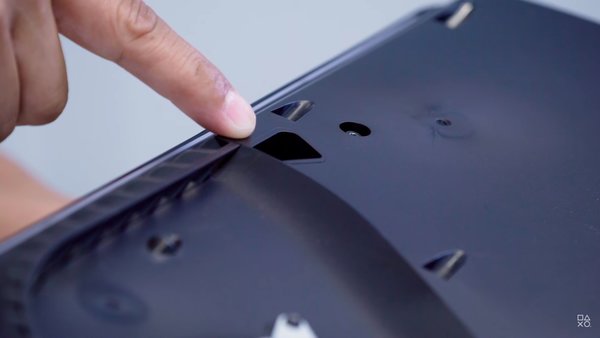
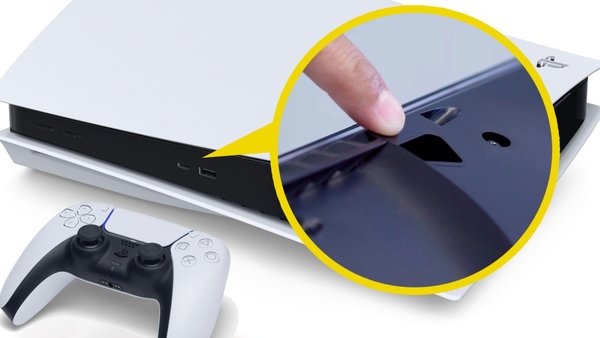
The sort of feature you didn't know you needed - the PS5 now comes with dedicated vacuum holes, to finally avoid the playground myth that vacuuming near a video game console destroys its innards.
To access, you'll need to remove both facia plates by clicking "downwards" (away from the logo), but once revealed, look for this specific hole in the system and you can clean it very easily.
Check the video above at around the 2:30 mark to see where the holes are located, but the facia removal process seems fairly simple.
6. System-Level Options You NEED To Know About
Taking a page out the Xbox 360's book - and something millions of us have dearly missed since that console's generation ended - the PS5 comes with many system-level settings for important game defaults.
To find, go into Settings, Saved Data & App Settings, then down to Game Presets.
Whilst these only apply to PS5 titles, you can tell the console to mandate a specific difficulty, whether you want your camera permanently inverted (first and/or third person), whether you always want subtitles, and whether you always want to prioritise visual fidelity or performance.
The latter applies to scores of triple-A games that let you choose between a higher resolution and amount of visual detail at a lower frame rate, or playing smoother with certain bells and whistles turned off.
If you know you're a frame rate-loving sort, set the system to prioritise performance and you'll never have to worry about this again.
5. DualSense Controllers Work On Android

Thanks to Austin Evans for figuring this one out, as turns out you can get even the PS4 to recognise the DualSense, thanks to it pairing through Bluetooth tech.
However, whilst the DualSense doesn't then control anything on a PS4 screen, you can pair it with Android and continue as though it was any other wireless controller.
Hilariously too, this means - as shown in Austin's video - you can use a DualSense to play Xbox Game Pass, controlling something like Halo, Forza or Gears with PlayStation-branded hardware.
4. Easily Remove The Facia Plates

Back to the twin facia plates for the system itself, as Sony are practically encouraging all-out customisation by letting you detach both white parts of the console, to design however you want.
Yes, this is more to do with cleaning the console and getting access to those aforementioned vacuum holes, but scores of consumers are already spray-painting and accessorising their face plates.
It's another feature reminiscent of the Xbox 360's detachable front, and although Sony have interfered with the otherwise promising-sounding "PlateStation" customisation site, here's to a future of unique PS5s for everybody.
3. Enhance Un-Optimised Backwards Compatible Titles

Simply because the PS5 has greater amounts of RAM and computational hardware overall, scores of older games will take advantage of it even without dedicated patches.
Any PS2 titles bought digitally - GTA 3, Dark Cloud, Ape Escape, The Warriors etc. - load in an instant, and first-party PS4 games like Ghost of Tsushima and God of War both load faster and have higher frame rates.
God of War in particular can now run at 4K resolution at 60 frames a second, and it's pretty damn gorgeous.
Alongside back-compat touch-ups we're getting dedicated next-gen patches for the likes of No Man's Sky, Watch Dogs: Legion, Assassin's Creed Valhalla and many more. These purposefully introduce new coding techniques like ray tracing or increased texture work - just know that diving into any of your old library will still see a base uptick in resolution or frame rates, automatically.
2. Load Into A Checkpoint/Level From The Game Hub Or A Notification

Back to the system-level stuff, as there are multiple ways to speed-load into parts of a game that go "around" the game itself.
One is whilst being in a title, hit the PS button and see which Cards auto-generate. Some will be trophies you're yet to get, but many others - in the likes of Spider-Man and Astro's Playroom - will suggest incomplete missions or challenges you haven't tried yet. Hit Square here and you'll beam to the exact point on the in-game map to start said challenge.
This is much faster than fast-travelling around an open-world game like Spidey, and I'd highly recommend it.
Second is loading into a game from its own Game Hub. Hover on a title and go down into the Game Hub. From here you'll see the same list of challenges and game goals, but they can be buttoned into - in seconds - even if the game isn't suspended.
Third is what Sony are showing off with the system-level leaderboard integration of Astro's Playroom. Because it's the free built-in game with every PS5, set a time on one of the race levels and your console will notify you when someone beats it.

From this notification, hit the PS button and you can immediately dive into the game - again, in seconds - to try again.
1. View Time Spent Playing Games
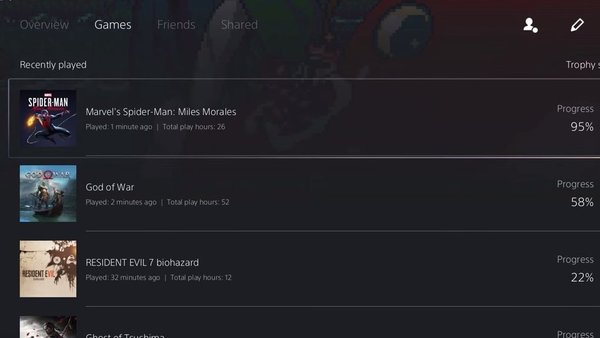
Straight out of the Nintendo Switch's profile menu is Sony's take on itemising your entire game-playing history across PS4 and PS5, complete with to-the-hour play time.
To access, you just need to go on your profile and then into the "Games" tile. This can be done either by hitting the PS button and going on your avatar icon on the far right, then into Profile, or tapping into that same avatar image from the top-right of the dashboard.
Once inside you'll see a full breakdown of titles played in descending order of recency. Also included are trophy percentages letting you know how close you are to netting a 100% Platinum.
Combined with SSD loading, the various ways you can button into unfinished parts of titles and in-game hints, we're gonna be playing a lot more games a lot faster than ever before.